I kept running into the same small frustration on the new ChatGPT image generation page: the images were good enough that I wanted to inspect them, compare them, and move around inside them quickly, but the page did not give me the kind of viewer I wanted.
For generated images, the difference between "I can see it" and "I can inspect it" matters. I want to zoom into details, pan around without losing my place, flip through nearby images, and pull the useful ones into a saved set. That is especially true when I am using image generation as part of an interface design workflow, because tiny visual decisions can change whether an idea is useful or just superficially interesting.
I have been adding pan-and-zoom interfaces anywhere I work with images: product grids, visual notes, screenshot-heavy tools, image review screens. Once an interface has enough images, a plain thumbnail or browser tab stops being enough. The valuable interaction is the fast loop: open, inspect, compare, save, move on.
So I built a Chrome extension around that loop.
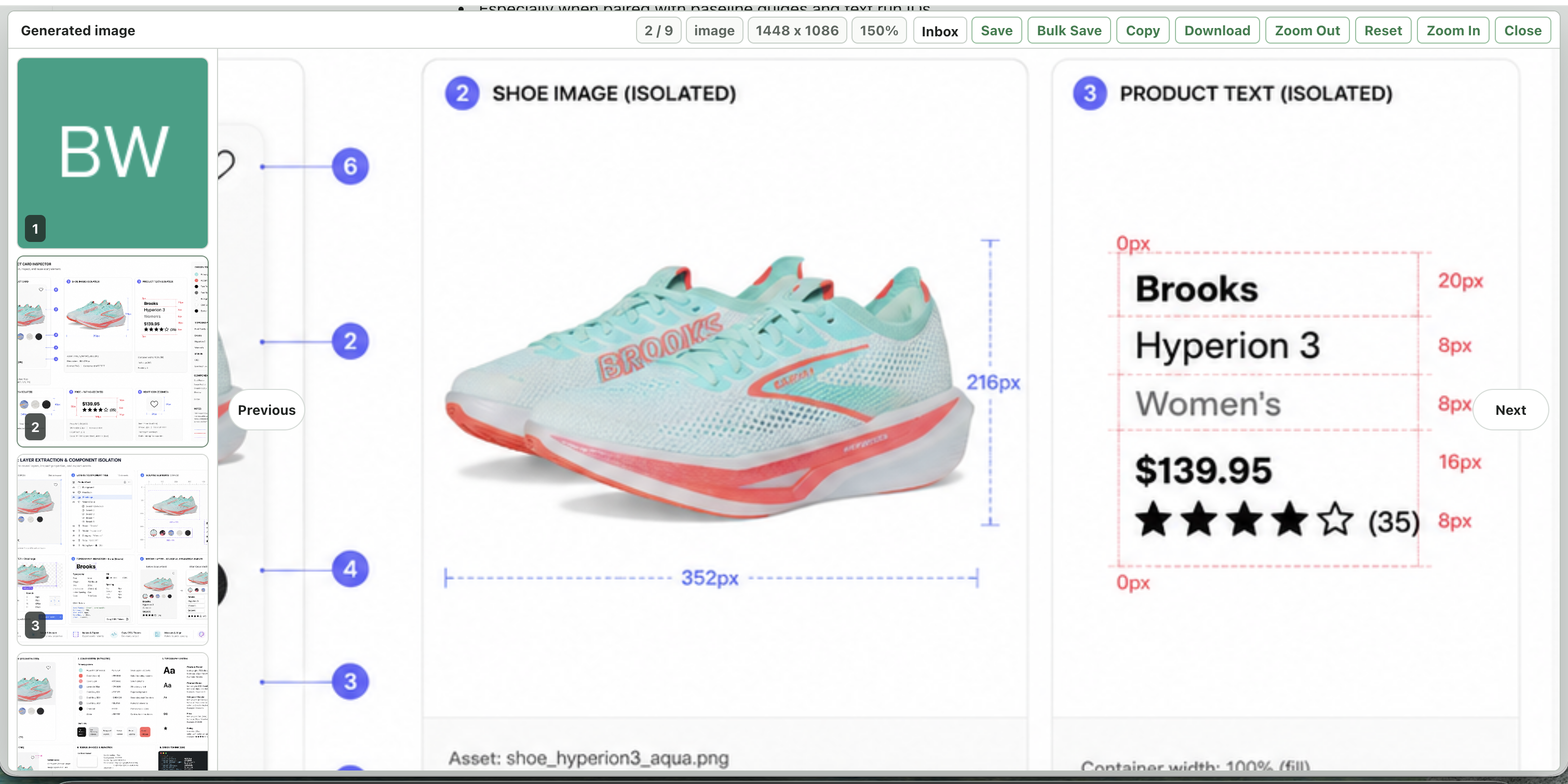
The extension lets me alt-click an image on a page and open it in a modal with wheel zoom, drag panning, reset, keyboard navigation, and nearby image thumbnails. If there are many images on the page, I can switch to a grid, bulk-select the images I care about, save them into extension folders, or download them as a ZIP.
That turns the image generation page from a feed into a workspace. I can stay in the browser, inspect the output at the level of detail that matters, collect the images worth keeping, and come back to them later in a full-tab folder viewer.
The bigger lesson is that image-heavy workflows need first-class image navigation. Pan and zoom are not flashy features; they are basic affordances once images become source material instead of decoration.
- Project: Alt Image Zoom Modal
- Source: byronwall/chrome-image-modal